Explain a VAST tag with an annotated HTML report
A publisher sends you a tag for a fullscreen pause ad. Where is the image? What tells the player when to show it? Run vastlint explain to put the XML, its playback instructions, and the creative preview in one HTML file.
Open the example report to follow along with the VAST 4.2 pause tag, or generate a report from your own XML.
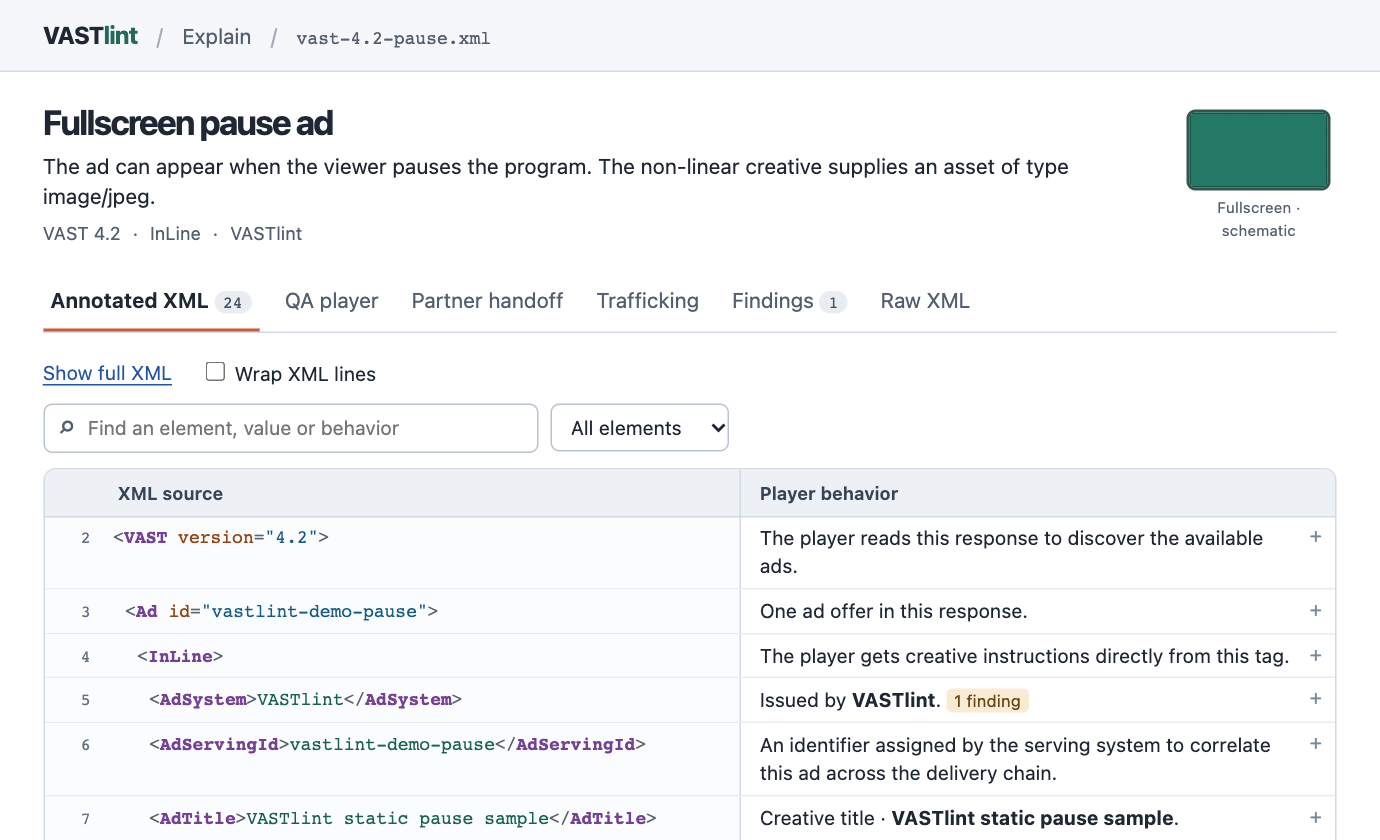
Annotated XML explains what each line asks the player to do
Read across a row from XML source to Player behavior. Search for creativeView and expand the tracking row on line 14. Its URL is the beacon for displaying the creative. The impression on line 8 has its own URL. These are two separate declarations, even though they use the same host.
Clear the search and find StaticResource on line 17. That line supplies the JPEG. Its parent NonLinear on line 16 supplies the slot dimensions. If you are investigating a validation message, select With findings to narrow the rows.
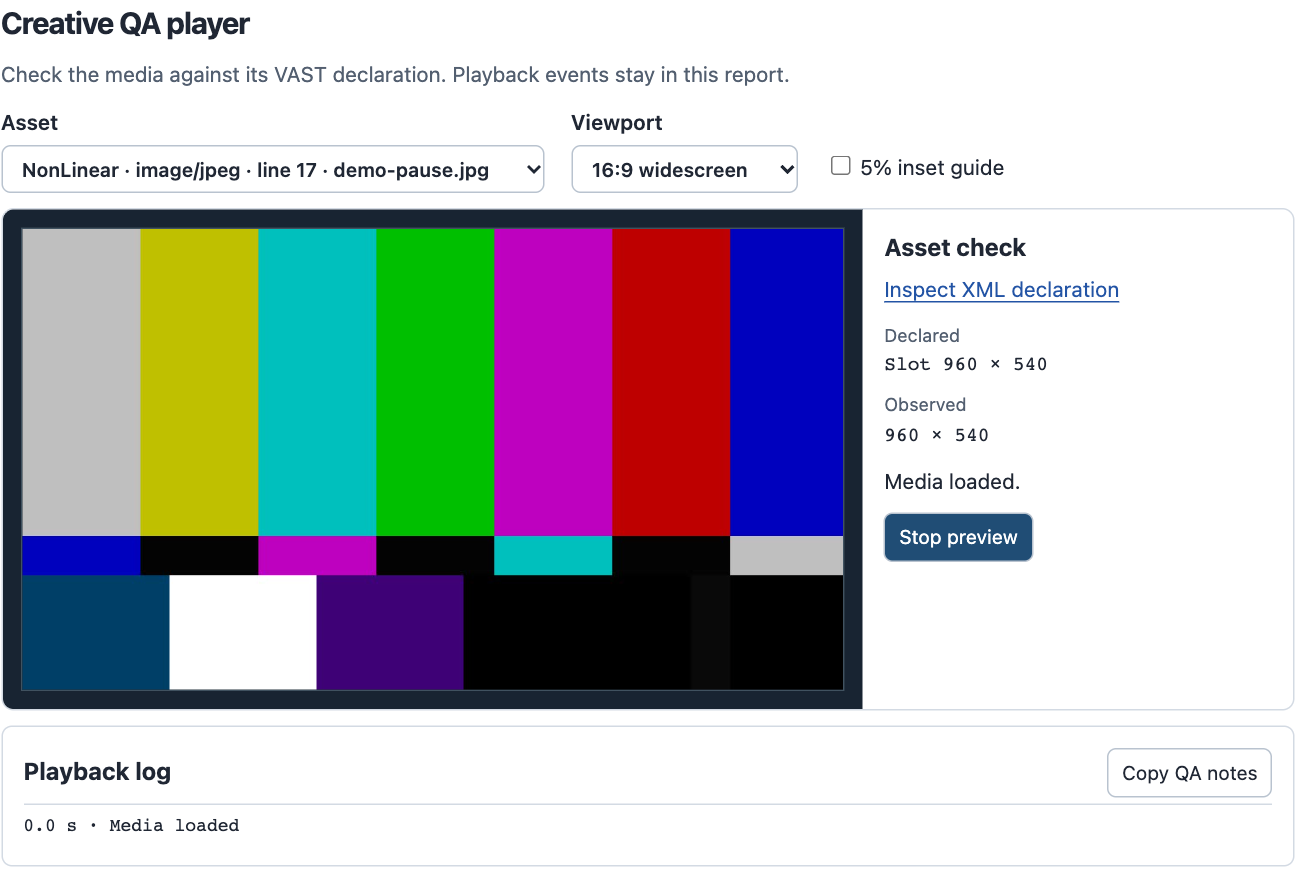
The QA player lets you inspect the actual creative
In the sample QA player, select Load preview. Under Asset check, compare the declared slot with the dimensions the browser observes after decoding the JPEG. Both are 960 × 540 here. Switch to a portrait viewport to see how the same image fits, or use Inspect XML declaration to return to its source.
Partner handoff gives the publisher a brief
Open Partner handoff and choose Copy handoff. It brings the ad ID, creative format, and placement declarations together. For this tag, the useful question for the publisher is whether its player reads the pause placement and fullscreen position from these VAST extensions or gets those values from the bid request. Include the ad ID so the publisher can find the same creative.
Trafficking compares the tag with the booking
In Trafficking, expand Compare with the partner booking. Enter the experience and position from the insertion order. Try Instream and Fullscreen to see why the two checks matter. The position agrees, but the tag declares a pause experience. Confirm which experience was sold before changing the tag.

Farther down, Declared resources lists the JPEG, Viewer destinationsshows that the tag supplies no click-through or QR destination, and Measurementlists the impression and creativeView declarations. Use these when checking a trafficking sheet.
Findings takes you to the line behind a validation message
The sample findings show zero errors, zero warnings, and one informational finding. VAST-2.0-adsystem-no-version points to AdSystemon line 5. Select the rule ID to read its documentation or the line number to inspect the XML. The issuer name is present, but its software version is missing. That version can help identify the serving system when two partners investigate a discrepancy.
Raw XML preserves the original tag
Open Raw XML to see the full document, including closing tags, CDATA, and extension nesting. Choose Copy full XML when someone needs to reproduce a finding. Use Show annotated XML to resume reading line by line.
Generate your first report
With VASTlint CLI 0.19.1 or later installed, run these commands in an empty directory and open report.html in your browser. For your own tag, replace vast-4.2-pause.xml with its file path.
curl -fsSLO https://vastlint.org/samples/vast-4.2-pause.xml
vastlint explain vast-4.2-pause.xml -o report.htmlEmbed the image for offline review
To reproduce the preview shown above, download the JPEG and map the exact URL in the XML to the local file. The resulting report carries the image with it.
curl -fsSLO https://vastlint.org/samples/demo-pause.jpg
vastlint explain vast-4.2-pause.xml \
  --embed-asset https://vastlint.org/samples/demo-pause.jpg demo-pause.jpg \
-o embedded-report.htmlShare the report with a partner
The HTML includes the full input XML and any assets you embed. Check the tag for private URLs, tokens, or client identifiers before sharing it. Generating the report works offline. Loading a remote preview contacts the asset host. Reading links open a public topic on vastlint.org and carry only the topic name.
The QA player leaves SIMID code inert. For a live wrapper chain, use the VAST Wrapper Inspector. To make validation errors fail a build, use vastlint check as described in the CI guide.